GT Band Manual
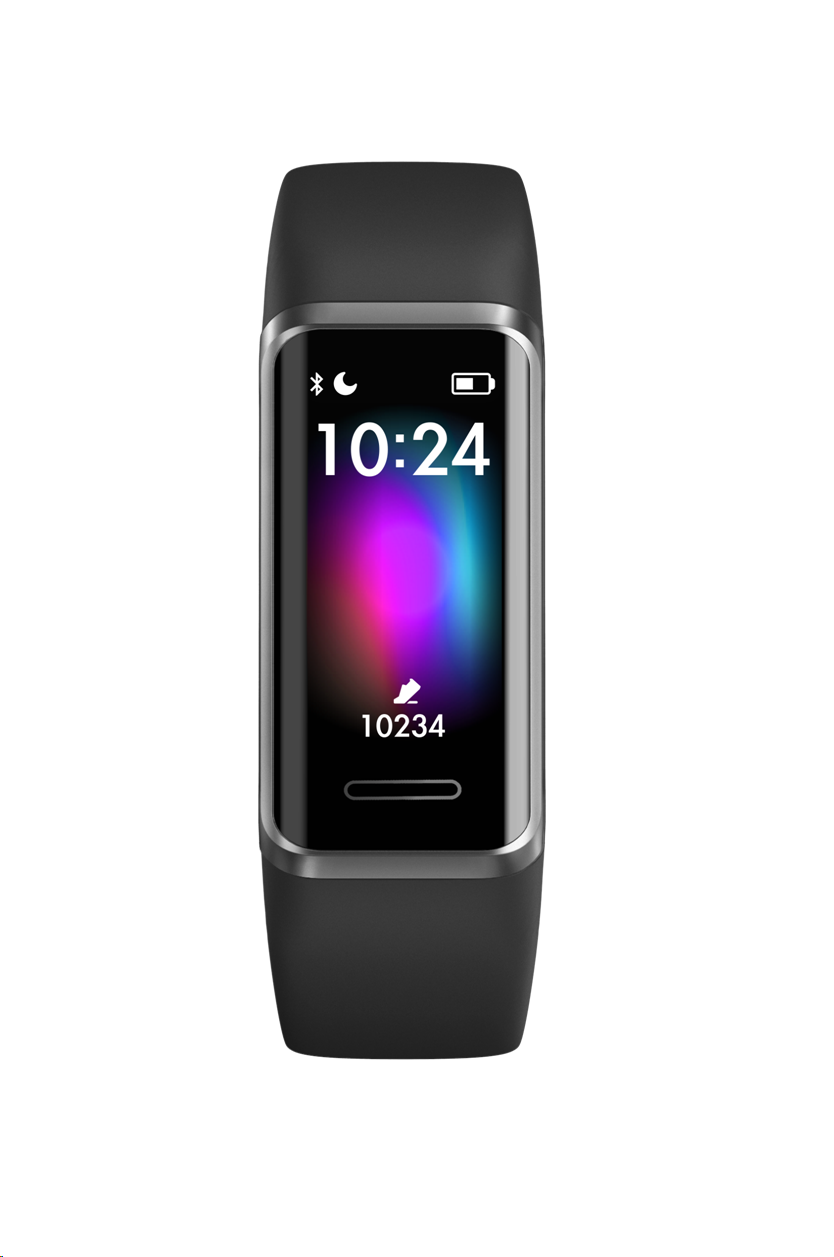
GT Band Smart SportsWatch
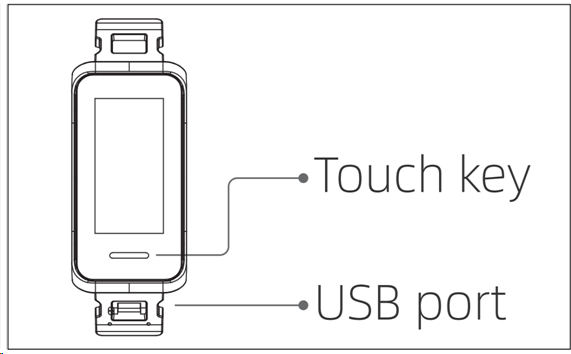
TOUCH KEY
USB Port
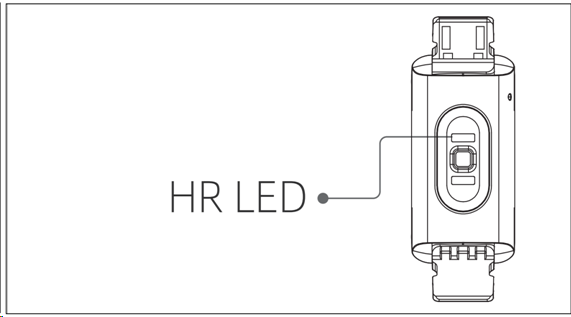
HR LED
- 1. Unpack and check if the following items are included;
- 2. Packing list: (1) GT Band (with lithium battery);(2) User Manual.
- 3. Note: the bracelet must be activated through charging before the first use. (1) Pull the strap and remove the main body of the Bracelet; (2) Insert the metal charging terminal of the main body into the USB port to charge the Bracelet (please use the specified voltage and current (5V/500mA), and be careful not to reverse the polarity).
-

- 4. Search “veryfit” on the App Store of your phone or scan the QR code to download and install the App. (1) Start the App, fill in your info and step goal; (2) then go to the “Home”interface and click “Bind Device”, and select the braceletmodelin the search results to bind.
a) Bracelet
- 1. The bracelet will automatically record your data.
- 2. You canmanually measure your heart rate, SpO2, and stress on the bracelet, moreover,it canmonitor your heart rate and sleep throughout the day. You can manually operateit or set itto automatically monitor your health all the time.
- 3. To start an exercise:
- 4. Start the sports App on the bracelet, click an ICON of sports type and set the goal, then start to exercise.
b) App
- 1. Start “veryfit”, enable the Bluetooth feature, and grant the GPS positioning permission;
- 2. Light up the bracelet screen and bring it close to your phone;
- 3. Click "Bind Device" on the App, and select the bracelet model in the search results to bind;
- 4. Confirm the binding request on the bracelet;
- 5. Fill in your information and set your step goal on the App to complete the binding.
Basic Operations
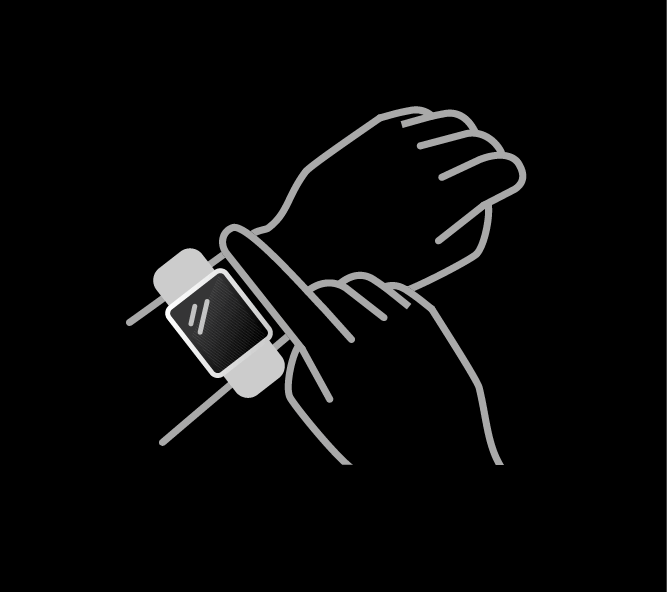
- 1. Wear it correctly: make sure that the bottom sensor is properly attached to the skin, and the strap shall be one finger away from the wrist.
- 2. Touch operation: the GT Band supports full-screen touch operations. Single click: select; long press:enter or confirm.
- 3. Touch key: the GT Band has a touch key. Short press: return or close a notification.
Function Description
-
1. Dial
You can switch between different dialsin the “Dial Settings”. And you can download and install more dials in the “Dial Market”.
-
2. Sports
14 Sports modes are provided: Outdoorrun\Indoorrun\Outdoorwalk\Indoor walk\Hiking\Outdoor cycle\Indoor cycle\Cricket\Pool swim\ Openwater swim\Yoga\Rower\Elliptical\Workout. You can choose to show or hide any sports mode in “veryfit”.

GT Band has the Intelligent Sports Detection function, and can detect if the user is running or walking; this functioncan be enabled or disabled in the App.
The Sports Summary of GT Band contains a variety of sports data, and the details can be viewed in the veryfit App.
-
3. Apps
Swipe up or down to select an icon. The icons include:Message, Health Data, Workout, Heart Rate, Stress, SpO2, Sleep, Relax, Music, Time, and Settings.



-
3.1 alexa
3.1.1 VeryFit App-alexa
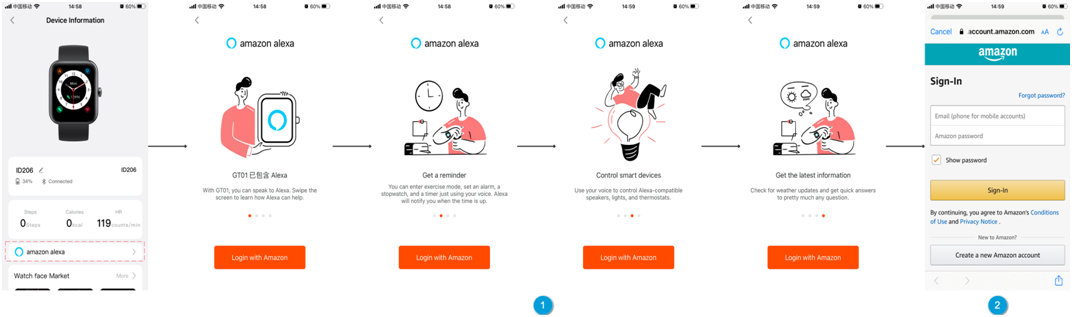
1. App can click the amazon alexa area to enter the login tutorial interface
2. Jump to the Amazon dedicated alexa account login interface for account binding authorization
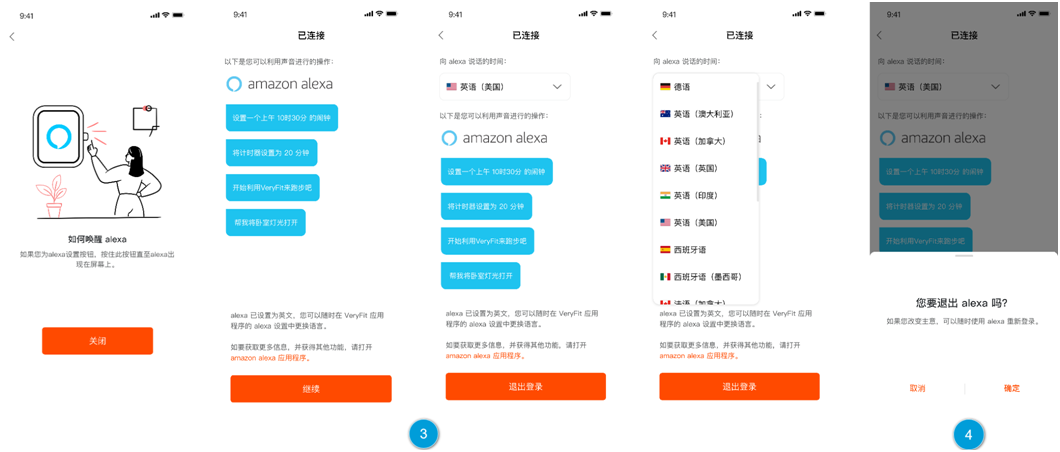
3.After binding authorization, you can view part of the operation introduction and set different national languages;
4.Click the log out button to log out of alexa, you can log in again at any time.
3.1.2 the band-alexa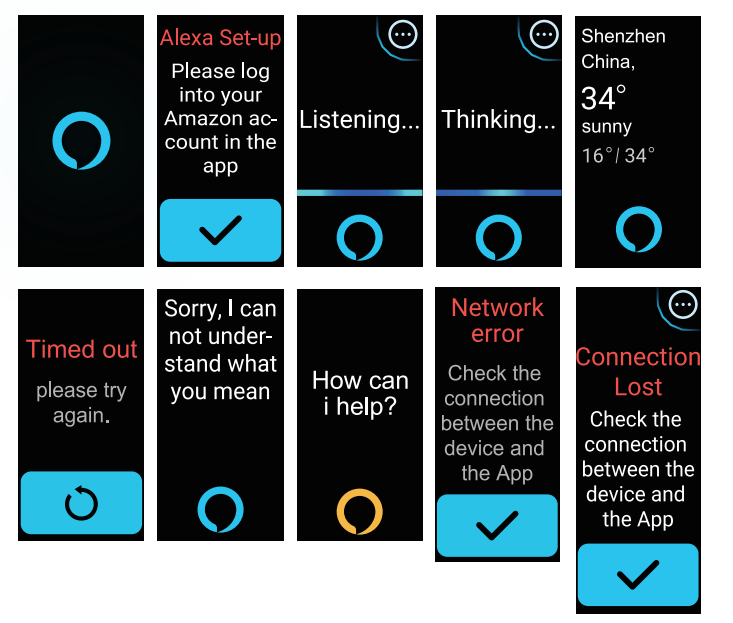
1. The band supports alexa function. After inputting a voice command in the listening interface, it will enter the thinking interface and return the result.
2. When the request times out, the voice cannot be recognized, the account is not logged in, the network connection is unstable, and the Bluetooth is not connected, a corresponding prompt will be displayed.
-
3.2 Health Data
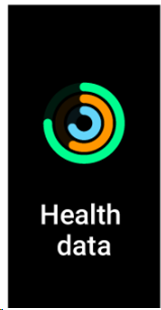
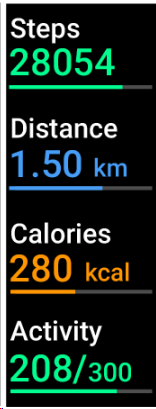
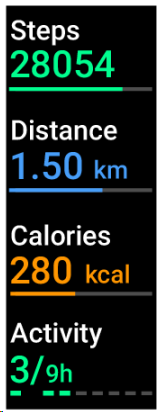
It supportsviewing the daily accomplishment of the following info: Steps, Calories, Distanceand Activity.
-
3.3 Heart Rate

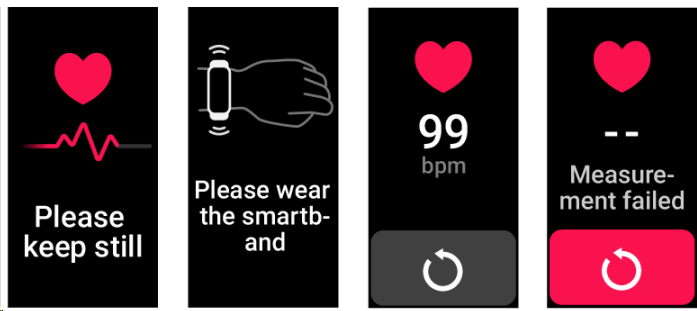
1. It supports measuring your heart rate any time or viewing thedaily monitoring data. Also, you can set the measurement frequency in the App settings;
2. After you start the heart rate measurement App, you should keep your arms and wrists still during the measurement.
-
3.4 Stress
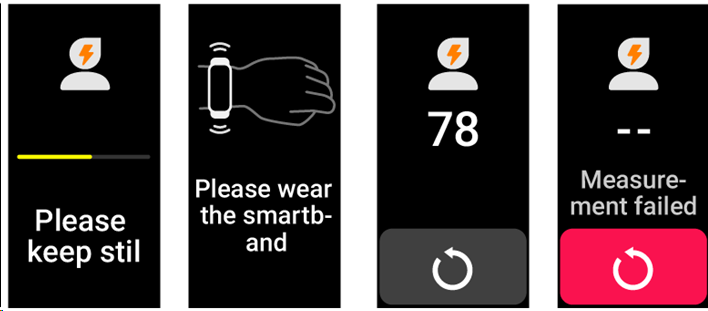
After you start the stress measurement App, you should keep your arms and wrists still during the measurement.
-
3.5 SpO2
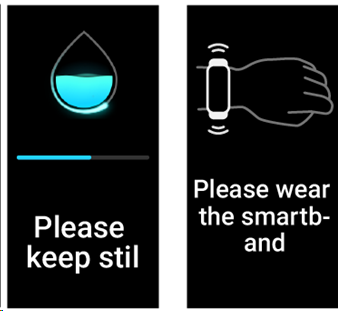
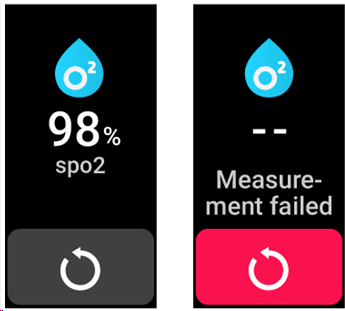
After you start the SpO2 measurement App, you should keep your arms and wrists still during the measurement.
-
3.6 Sleep
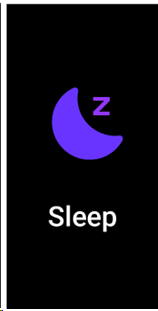
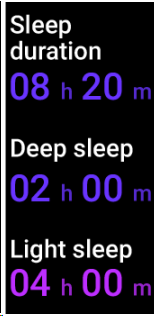
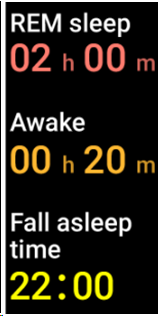
You can view the most recent sleep record and sleep status at each stage.
-
3.7 Relax

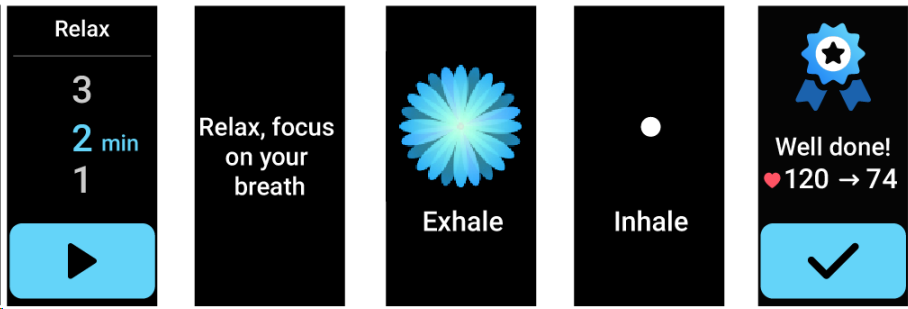
1. Enter the Relax App and choose the duration;
2. Click to start, then follow the vibration frequency and animationinstructions to adjust your breathing and it will help you relax.
-
3.8 Time
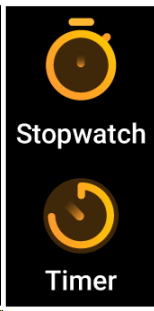
A stopwatch and a timer are provided.
a) Stopwatch
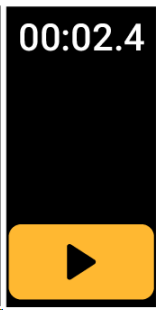
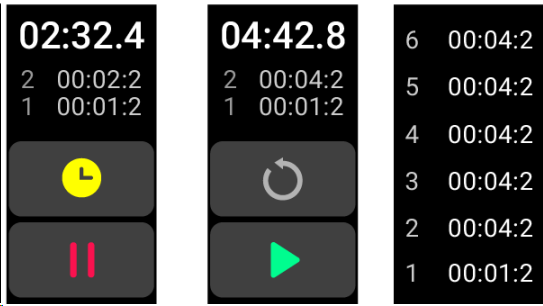
You can set the stopwatch on the bracelet and it supportsrecording multiple times.
b) Timer
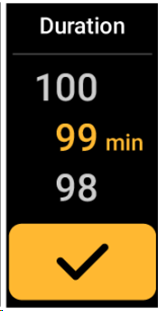
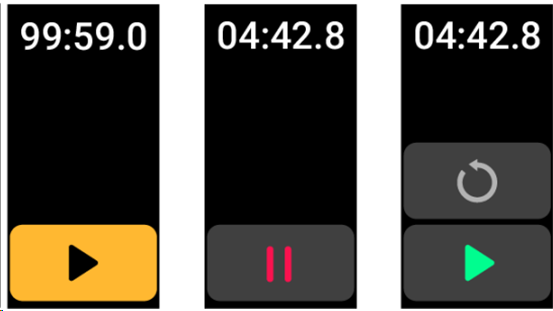
You can set the duration of timer on the bracelet, and it will remind you when time is up.
-
3.9 Music
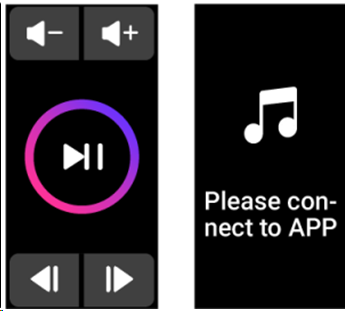
1. When the bracelet is connected to the App, you can control the music player on your phone. Common operations like Next/Previous, Play/Pause and Volume +/- are supported.
2. This function can be displayed\hide in the App settings.
-
4.0 Settings
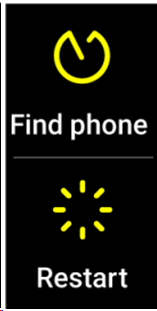
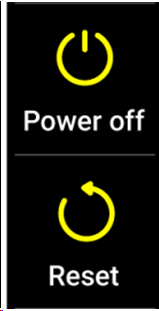
1. Under Settings, functions like Find Phone, Restart, Power off, Reset (reset the bracelet, all data in the bracelet will be cleared and it will be unbound from the phone) and About are provided.
-
4.1 Message
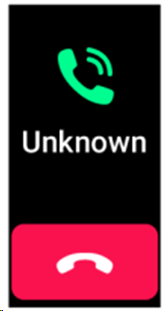
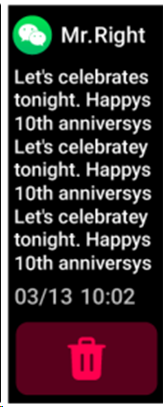
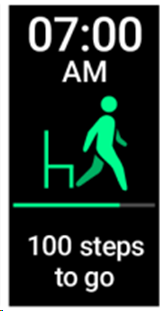
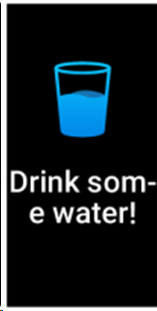
It supports different notifications, including message, incoming call, exercise reminder, “Drink Some Water!” tip, daily exercise goalreminder, etc.